The Nikon Picture Control editor for D780 lets you build custom in-camera looks without replacing your DSLR or relying on heavy editing. Film Recipe Hub’s browser-based editor adjusts image characteristics such as contrast, brightness, saturation, and hue, then exports a compatible Picture Control file for transfer to the camera. The result is a practical way to explore film-inspired JPEGs on a camera you already own.
What the Nikon Picture Control editor does
A Nikon Picture Control editor is a tool for creating or modifying the image-processing settings the camera applies to photographs. For D780 owners, Film Recipe Hub’s browser-based Picture Control Editor provides a way to shape a custom look, export it as a compatible file, and use it in camera.
 How to Use the NP3 Editor for Nikon D780 DSLR Users - What the Nikon Picture Control editor does
How an NP3 recipe becomes a camera look
The D780 can use custom Picture Controls to influence the appearance of JPEG images as they are processed in camera. Rather than applying a preset to an image later in desktop software, you adjust Picture Control parameters before taking the picture. The camera then renders the JPEG using those settings.
The editor supports adjustments including contrast, brightness, saturation, and hue. These controls affect the character of the image, but they are not a one-click guarantee of a particular film stock’s appearance. A Portra-inspired recipe, for example, is an interpretation built from camera settings—not a chemical emulation or a promise that every scene will match a film scan.
The workflow is useful for photographers who want a consistent starting point and prefer to spend less time processing. You can make a look more muted, punchier, or otherwise closer to your creative intent, then evaluate it in actual photographs.
Why a DSLR user might want a modern film look
A D780 does not need to be replaced with a mirrorless camera to support a creative, JPEG-first workflow. Custom Picture Controls offer DSLR users a way to experiment with in-camera color and tonal character while continuing to use familiar lenses, handling, and shooting habits.
This approach can be especially useful for:
- Travel and everyday photography, when you want ready-to-share JPEGs.
- Events and family images, where a consistent look can simplify delivery.
- Personal projects, where a selected color or monochrome treatment supports the subject.
- Learning image character, by observing how adjustments affect different scenes.
The D780’s recipe is an in-camera rendering choice, not a restriction on how you photograph. You can still choose whether to work with JPEGs, RAW files, or both, according to your workflow.
What the editor is—and what it is not
Film Recipe Hub’s Picture Control Editor is a browser-based utility for creating and customizing Nikon Picture Controls. It is not Nikon software, and Film Recipe Hub is an independent community resource rather than an affiliate of Nikon Corporation.
The editor is also not a general-purpose photo editor. It does not replace software such as Lightroom for detailed retouching, selective adjustments, or extensive RAW development. Its purpose is to help you create a camera-ready profile so that the D780 can render a chosen look at capture.
For broader Nikon resources, browse the Nikon recipe library and compare available looks, sample images, and settings before building your own.
Technical specifications and workflow mechanics
The editor’s role is to convert selected Picture Control settings into a file that can be transferred to a compatible Nikon camera. The table below separates what the tool does from the steps the photographer performs, so the workflow is clear without assuming unsupported menu names or camera-specific options.
 How to Use the NP3 Editor for Nikon D780 DSLR Users - Technical specifications and workflow mechanics
Editor and file workflow at a glance
| Stage or element | What it means for a D780 user | Practical consideration |
|---|---|---|
| Browser-based editor | Create or customize a Picture Control using Film Recipe Hub’s online utility | Use the editor to adjust the available image parameters |
| Adjustable characteristics | Includes contrast, brightness, saturation, and hue | Change settings with a specific visual goal, then test the result |
| Export formats | The tool supports Nikon Picture Control formats including .NP3 and .NCP | Select a compatible export and follow the camera’s supported import workflow |
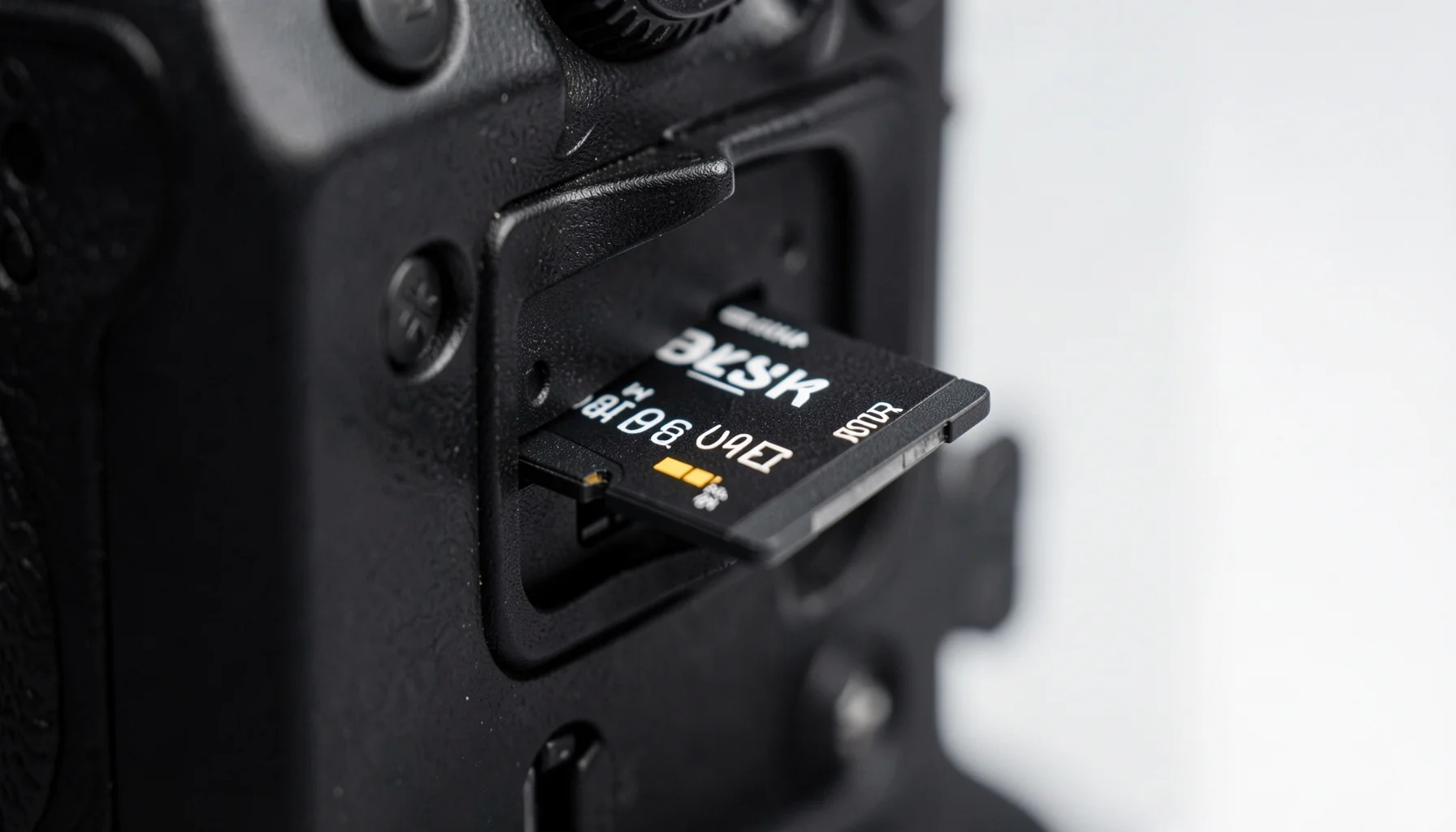
| Transfer medium | The exported file is transferred using an SD card | Keep the file accessible on the card in the arrangement required by Nikon’s import process |
| Camera use | A loaded custom Picture Control can affect JPEG rendering in camera | Confirm the selected profile before a real shoot |
| Recipe evaluation | Sample photos and repeated tests help assess a look | Lighting, subject colors, and exposure can change how a recipe appears |
| Community context | Recipes can include creator credits and example images | Respect attribution when using or sharing another creator’s recipe |
Interpreting .NP3 and .NCP
The editor’s export options include .NP3 and .NCP Picture Control files. These formats are associated with Nikon’s Picture Control system, which is used across supported Nikon models, including certain Z-series cameras and DSLR models such as the D780.
Compatibility should be checked rather than inferred from a filename alone. A file being a Nikon Picture Control does not mean every Nikon camera supports every variant or every transfer method. Before a shoot, confirm that the D780 accepts the exported file through its available Picture Control loading process. If a file is rejected, verify the format and transfer procedure instead of repeatedly changing recipe values.
It is also important to distinguish the recipe file from the photographs made with it. The file stores a set of rendering instructions; it is not an image, a Lightroom preset, or a camera firmware update.
What changes in the final photograph
Picture Control parameters shape how the camera renders an image, particularly the JPEG output. Contrast affects the separation between lighter and darker tones; brightness shifts the overall rendering; saturation influences color intensity; and hue changes color relationships. Their visible impact depends on the scene and exposure.
A setting that looks balanced in a portrait may behave differently in a landscape with vivid foliage or a night scene with mixed artificial lighting. For that reason, treat a recipe as a repeatable starting point rather than a universal correction. Film Recipe Hub’s sample photos can help you understand a recipe’s intent, but your own camera tests are the best way to judge it in your conditions.
Step-by-step: create and load a D780 Picture Control
The practical workflow is to decide what look you want, adjust settings in the browser-based editor, export a compatible file, transfer it by SD card, and test it in camera. Because menu labels and import details can depend on the camera and firmware, follow the D780’s own instructions for loading custom Picture Controls.
Step 1: Define the look before adjusting settings
Start with a specific visual aim. “Make it look like film” is too broad to guide useful adjustments. Instead, decide whether you want restrained color, stronger saturation, a contrasty monochrome treatment, or another recognizable direction.
Choose a subject that can reveal the look’s strengths and weaknesses. A portrait can show skin tone and highlight behavior; a colorful street scene can reveal how saturated colors interact; a high-contrast scene can show whether shadows become too heavy. If you are starting from an existing community recipe, review its sample photos and credited creator notes where available.
Keep a record of the starting recipe and each change. That way, if the result moves in the wrong direction, you can return to a known version rather than trying to reconstruct it from memory.
Step 2: Adjust the recipe in the browser
Open the Picture Control Editor from Film Recipe Hub’s Tools section. Use the available controls to adjust contrast, brightness, saturation, and hue in support of your chosen look. Make deliberate changes, preferably one or two at a time, so you can understand what each adjustment contributes.
Avoid treating the control values as a universal formula. A recipe intended to look soft or subdued may not suit a scene that depends on deep contrast, and a vivid color treatment may be distracting for portraits. The goal is not to maximize every slider. It is to create a coherent rendering that holds up across the kinds of photographs you make.
For a broader introduction to the editing process, see the Picture Control Editor tutorial for beginners.
Step 3: Export and transfer the file
When the recipe is ready, export it in a compatible Nikon Picture Control format, such as .NP3 or .NCP, as supported by the editor and camera workflow. Copy the exported file to an SD card for transfer to the D780.
Before loading it, check that the file copied successfully and that you know which custom Picture Control slot or camera location you intend to use. Follow Nikon’s D780 instructions for importing custom Picture Controls; do not rely on an unverified folder path or menu sequence. If the camera does not recognize the file, first revisit file compatibility and the transfer procedure.
Keep an unmodified copy of the exported file on your computer or another safe storage location. This makes it easier to restore the profile or transfer it again later.
Step 4: Test before relying on it
After loading the profile, make a short test series. Photograph a person, a neutral or familiar object, and a scene with a broader range of colors or tones. Review the JPEGs on a screen large enough to spot problems in skin, highlights, shadows, and color transitions.
If you shoot RAW alongside JPEG, remember that the camera’s Picture Control chiefly describes the in-camera rendering. Your RAW workflow may display or interpret the image differently depending on the software used. Decide whether the recipe is intended to guide your JPEG output, provide a visual reference, or serve both purposes.
Only rely on the recipe for an important event after you have tested it in similar lighting. A profile that works beautifully outdoors may not be suitable under mixed indoor lighting without further adjustment.
Practical tips, common problems, and examples
A custom Picture Control is most useful when it is tested as a repeatable camera workflow, not judged by a single preview. Build a small test routine, note the conditions, and adjust the recipe only when you can identify a specific problem in the resulting images.
Avoid changing too many settings at once
When a recipe looks wrong, identify the symptom before changing controls. If colors feel too intense, saturation is a reasonable setting to review. If the image feels too flat or too harsh, inspect contrast. If the overall rendering seems too light or too dark, evaluate brightness alongside exposure rather than assuming the recipe alone is responsible.
Changing multiple parameters at once makes cause and effect hard to track. Instead:
- Save or record the current version.
- Identify one visible issue in the test image.
- Adjust the setting most relevant to that issue.
- Photograph the same subject again under similar conditions.
- Keep or reverse the change based on the comparison.
This controlled approach matters because lighting, exposure, white balance, and subject color also affect the image. A Picture Control cannot compensate reliably for every capture condition.
Troubleshoot file and image issues separately
If the D780 does not load a file, treat that as a compatibility or transfer issue, not a color-setting issue. Recheck the exported file format, confirm that the transfer completed, and consult the camera’s instructions for importing custom Picture Controls. Do not assume that renaming a file or changing its settings will make an incompatible file load.
If the file loads but the JPEG does not look as expected, troubleshoot the rendering instead. Confirm that the custom Picture Control is selected, then compare images made under similar conditions. Check whether the issue is limited to one type of scene—for example, saturated signage, skin tones, or deep shadows—before revising the recipe.
A useful field habit is to keep a known neutral or familiar Picture Control available for comparison. Switching between a known reference and a custom profile can help separate a recipe’s character from changes in lighting or exposure.
Example: a restrained portrait look
Suppose you want a gentle, film-inspired portrait rendering rather than a highly saturated look. Start with a community recipe whose sample images match your general direction, then test it with the people and lighting you commonly photograph. Examine skin tone and highlight detail carefully; a pleasing color palette is not enough if faces become too bright, too dark, or visually inconsistent.
Make changes conservatively and compare versions side by side. The aim is not to reproduce a named film stock exactly, but to create a dependable JPEG rendering that suits your subjects. In another context—such as a vivid outdoor scene—you may prefer a different Picture Control or a neutral starting point.
Responsible adoption and the 2026 outlook
For individual D780 owners, Picture Control recipes are a low-friction way to update the look of a familiar DSLR workflow. In 2026, the durable advantage is not a particular trend or benchmark; it is having a documented, tested rendering that fits your work and can be recreated when needed.
Keep recipes organized and attributable
A growing collection of profiles can become confusing unless you track what each one is for. Give files clear names where the workflow allows, and keep a simple record of the intended look, source or creator, test conditions, and any changes you made. Preserve the original version when adapting a community recipe.
Attribution matters. Film Recipe Hub credits recipe creators, and photographers should retain those credits when sharing or discussing someone else’s work. A sample image can communicate a look, but it does not replace the settings or the creator’s contribution.
For a working photographer or a small team, clear organization also helps keep output consistent. A shared recipe should be tested on the camera and under representative lighting before it becomes part of a repeatable delivery process.
Understand the limits of a JPEG-first workflow
An in-camera Picture Control can reduce the need for routine color styling after capture, but it does not remove the need for good exposure, careful lighting, or quality control. It also does not make every scene look the same. A profile that suits one subject or light source can be less appropriate elsewhere.
If you depend on flexible post-production, consider whether JPEG-only capture gives you enough room for your project. Some photographers use in-camera rendering for ready-to-share JPEGs while retaining RAW files for situations that require additional latitude. The right choice depends on how much flexibility you need and how quickly you want finished images.
Film Recipe Hub’s educational resources also distinguish camera recipes from Lightroom presets: they target different parts of the workflow. A Picture Control is designed for Nikon in-camera rendering, while an XMP preset is used in compatible Lightroom workflows.
A practical outlook for legacy DSLR users
The D780 remains a useful platform for photographers who value its DSLR design and already have a working system. A custom Picture Control does not turn the camera into a different model, but it can make JPEG output feel more intentional and reduce repetitive editing for suitable assignments.
The best 2026 strategy is straightforward: choose recipes based on real sample images, verify compatibility, test them under your own conditions, and keep a reliable baseline profile available. Avoid unsupported claims about exact film equivalence or universal performance. Recipe design is creative, and results depend on the camera settings and scene in front of the lens.
Film Recipe Hub’s Picture Control Editor and community library are intended to help photographers explore those choices without requiring a mirrorless upgrade. Browse the recipes, test a look on your D780, and share your own results with appropriate creator credit.
FAQ
Can I use the Nikon Picture Control editor with a D780?
Yes. The D780 supports custom Picture Controls, and Film Recipe Hub’s browser-based editor creates Nikon Picture Control files in supported formats such as .NP3 or .NCP. Transfer the exported file using an SD card and follow the camera’s instructions for loading it. Confirm that the particular file and workflow are accepted by your camera before relying on the profile for an important shoot.
Does a Picture Control change the RAW file?
Picture Controls primarily determine the camera’s in-camera rendering, especially for JPEG output. A RAW file retains data for later processing, and the way a particular software application displays or interprets Nikon Picture Control settings can vary. If you capture RAW and JPEG together, compare both outputs in your actual workflow before assuming the RAW image will look identical to the camera-rendered JPEG.
Can the editor make an exact Portra, Ektar, or Tri-X match?
No editor setting can guarantee an exact match to a film stock across every subject, light source, exposure, and display. The editor lets you shape characteristics such as contrast, brightness, saturation, and hue to create a film-inspired in-camera look. Treat stock names as creative references, then judge the results using sample images and tests made with your D780.
What should I do if the D780 will not load an exported file?
First verify that the file was exported in a compatible Nikon Picture Control format and copied correctly to the SD card. Then check the D780’s instructions for the supported custom Picture Control import process. Avoid changing recipe values to solve a loading problem: settings affect the look, while recognition usually depends on file compatibility and transfer procedure. If the profile loads but looks wrong, test the rendering separately.