Yes—Film Recipe Hub’s NP3 Editor is a browser-based tool for creating and adjusting Nikon Picture Control files, but safe use still depends on sensible file-handling and camera-compatibility checks. It is intended to help photographers make in-camera JPEG looks without complex software. This guide explains what the editor does, what its workflow involves, and what you can verify before downloading or installing a profile.
What the NP3 Editor does—and what “safe” means
Film Recipe Hub’s NP3 Editor is a browser-based utility for creating, modifying, and managing Nikon Picture Control files. It lets photographers adjust image parameters for an in-camera look, then export a profile for use on compatible Nikon Z cameras.
 Is Nikon NP3 Editor Safe to Use? A Practical Guide - What the NP3 Editor does—and what “safe” means
A browser tool for custom Nikon Picture Controls
The editor is designed for photographers who want to shape JPEG appearance in-camera rather than rely on extensive post-processing. Users can adjust settings such as contrast, brightness, saturation, and hue to build a profile inspired by film looks such as Portra, Ektar, Cinestill 800T, or Tri-X.
The exported file is intended to be transferred to an SD card and installed on a compatible camera. This differs from applying a Lightroom preset to an image after capture: a Picture Control influences the camera’s rendered JPEG output. The resulting look depends on the selected settings and the scene being photographed.
The editor does not replace the camera’s exposure controls, nor does it guarantee an exact reproduction of a particular film stock. Film-inspired labels are useful creative references, not promises of a chemically identical film response.
What browser-based safety can—and cannot—tell you
“Safe” can mean several things: whether a tool is presented as a legitimate utility, whether a downloaded file is handled carefully, whether the profile is compatible with a camera, and whether the resulting image meets your expectations. These are separate questions. A browser-based workflow may avoid installing a dedicated desktop application, but that fact alone does not establish every detail of how data is processed or stored.
Film Recipe Hub describes the NP3 Editor as a free browser-based tool. The available information does not establish specific claims about encryption, data retention, or whether every operation happens locally in your browser. Avoid assuming those properties without a published explanation. As a practical precaution, do not submit private or sensitive material to any online tool unless you understand its data practices.
Who the tool is designed for
The primary audience is hobbyist and enthusiast mirrorless photographers who want straight-out-of-camera results. It is specifically engineered for Nikon Z-series cameras that support custom Picture Controls, including the Zf and Z fc. Compatibility should be confirmed for the exact camera model and file type before installation.
Film Recipe Hub is an independent community resource and is not affiliated with Nikon Corporation. That distinction matters: the editor creates files intended for supported Nikon hardware, but it is not an official Nikon utility. For a beginner, a cautious workflow is straightforward: use the editor, download the resulting profile, verify the file and camera compatibility, then test with non-critical photographs before relying on it for an important assignment.
NP3 Editor specifications and workflow mechanics
The NP3 Editor’s practical workflow is to adjust Picture Control settings in a browser, export a profile, and transfer it to a compatible Nikon Z camera. The table summarizes what is established about the tool and what users should verify independently.
 Is Nikon NP3 Editor Safe to Use? A Practical Guide - NP3 Editor specifications and workflow mechanics
Technical overview
| Workflow element | What is established | What to verify or expect |
|---|---|---|
| Tool format | Browser-based NP3 Editor from Film Recipe Hub | Use the official Film Recipe Hub tool page |
| Main purpose | Create, modify, and manage Nikon Picture Control files | A profile shapes the camera’s rendered look; it does not guarantee a specific film-stock match |
| Adjustable settings | Contrast, brightness, saturation, and hue | Review the available controls in the editor; do not assume unsupported adjustments exist |
| Export formats | .NP3 or .NCP files | Confirm which format your camera and chosen workflow require |
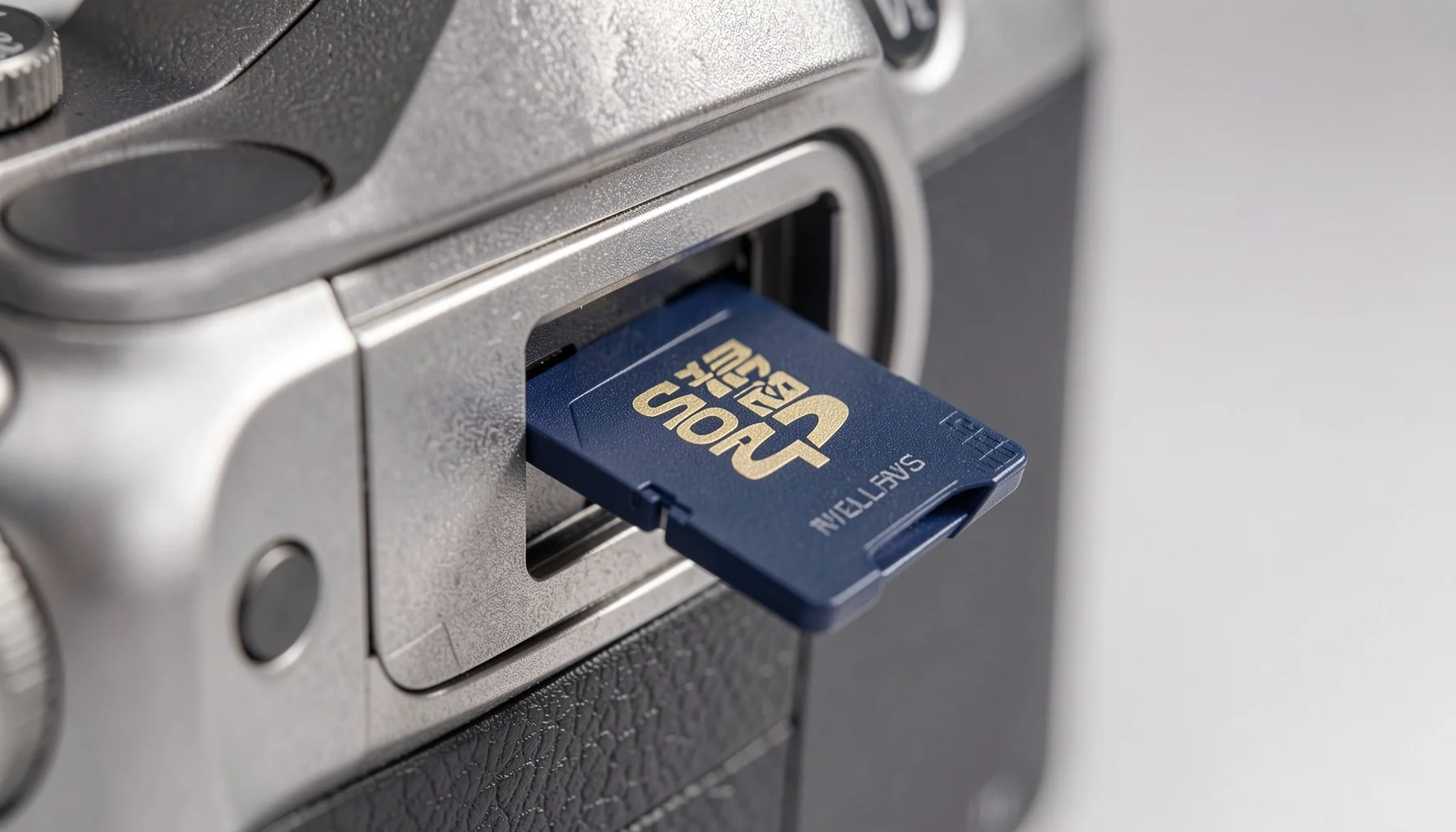
| Transfer method | Move the exported file to an SD card | Follow the compatible camera’s own installation procedure |
| Supported camera family | Nikon Z-series mirrorless cameras that support custom Picture Controls; examples include Zf and Z fc | Confirm exact model and firmware compatibility before use |
| Post-processing need | Intended to support in-camera looks and reduce reliance on extensive editing | Results still vary with light, exposure, subject, and camera settings |
| Cost and affiliation | Film Recipe Hub states its tools and resources are free; the site is independent of Nikon | Do not interpret the tool as Nikon software or official manufacturer support |
Reading the table without overclaiming
The distinction between an established feature and a user check is important. For example, the editor can export .NP3 or .NCP files, but that does not mean every Nikon camera accepts both formats in every situation. The relevant camera model and installation workflow determine what will work.
Similarly, a profile can influence color and contrast in JPEG output, but it is not a universal correction. A recipe that looks pleasing in soft daylight may render differently under mixed indoor lighting. Treat the exported profile as a creative starting point, then evaluate it with your own subjects and lighting.
How this compares with related Film Recipe Hub tools
The NP3 Editor focuses on adjusting settings to create or modify Picture Controls. Film Recipe Hub also provides an NP3 Generator, which converts a reference photo into a Nikon Picture Control, and a Lightroom-to-Nikon converter. These tools serve related but distinct workflows: editing settings directly, deriving a profile from a visual reference, or converting a Lightroom preset for Nikon use.
If the editor is new to you, the beginner’s guide to using the Nikon NP3 Editor can help you understand the basic process. For safety questions specifically, read the site’s guide to whether the Nikon NP3 Editor is safe to use, and assess any claims against the tool’s current published information.
How to create, download, and install a profile
A careful NP3 workflow separates profile creation from camera installation. Adjust the look, export the file, transfer it to an SD card, and confirm compatibility before loading it onto a camera.
Step-by-step: from editor to SD card
- Open the official editor. Navigate to Film Recipe Hub’s NP3 Editor. Check that you are on the expected site before interacting with the tool.
- Choose a visual goal. Decide whether you want a softer portrait look, stronger color, or a monochrome-inspired result. Film references such as Portra or Tri-X can guide the direction, but they are not exact technical targets.
- Adjust available settings. Work with the controls offered in the interface, including contrast, brightness, saturation, and hue. Make measured changes rather than moving every control at once; otherwise, it becomes harder to understand what changed the preview or output.
- Export the profile. Download the resulting .NP3 or .NCP file. Keep the downloaded file in a clearly named folder so you can distinguish it from other profiles.
- Prepare an SD card. Transfer the file to an SD card using the camera-compatible workflow. Do not assume a particular folder structure or menu sequence: those details can vary by model and should be checked against the camera’s installation instructions.
- Install and test. Load the Picture Control on a compatible Nikon Z camera. Take test images, review the JPEG rendering, and confirm that the profile behaves as expected before using it for important work.
Check compatibility before installation
The editor is engineered for Nikon Z-series mirrorless cameras that support custom Picture Controls, with the Zf and Z fc identified as examples. That is useful guidance, but it is not a complete compatibility list for every body, firmware version, or file format.
Before copying a profile, confirm three things:
- Your camera supports loading custom Picture Controls.
- The file format you exported is accepted by your camera and chosen workflow.
- You are following the installation instructions for that exact camera model.
If any of these points is uncertain, pause rather than repeatedly retrying the installation. An incompatible file may simply fail to load; that does not by itself mean the file is malicious or that the camera is damaged. Check the file source and camera instructions first.
Keep the workflow reversible
Preserve an original copy of the downloaded file and avoid overwriting other Picture Controls unless you understand the camera’s behavior. If the camera offers a way to retain or back up existing custom profiles, use the method documented for that model.
A test session should include more than one subject or lighting condition. Capture a neutral scene, a portrait or skin-tone subject if relevant, and a scene with varied colors. Compare the camera JPEGs rather than relying only on a preview in the editor. If the result is too strong, return to the editor and adjust one or two parameters at a time.
Practical safeguards, common pitfalls, and examples
The best way to reduce avoidable risk is to verify the source, handle the downloaded file deliberately, and test a profile on a compatible camera before depending on it. These habits address security, compatibility, and image-quality concerns without treating them as the same issue.
Sensible security and file-handling habits
Use the Film Recipe Hub tool page rather than an unfamiliar link or mirror. Check the address before downloading, and be cautious if a page asks for information that is not necessary to create or download a Picture Control. The grounded details describe a browser-based editor and file export; they do not provide a basis for promising specific data-storage or privacy mechanisms.
After downloading, keep the file in a known location and avoid changing its extension or contents. If your browser or operating system raises a warning, do not bypass it automatically. Check that you initiated the download from the intended site and that the file is the expected .NP3 or .NCP output.
These precautions are standard for browser downloads. They are not evidence that this editor is unsafe; they help users make informed choices with any downloaded file.
Common problems and practical responses
The profile will not load. Recheck the exact camera model, support for custom Picture Controls, file type, and model-specific installation instructions. Do not assume that every Nikon Z body supports every file format in the same way.
The JPEG looks different from the inspiration. A film name describes a creative direction, not a guaranteed match. Lighting, exposure, subject colors, and camera settings can all affect the result. Test the profile in the conditions where you expect to use it.
The image looks too contrasty or saturated. Return to the editor and adjust the relevant available settings gradually. Change one parameter at a time and compare test frames so the reason for each change stays clear.
The downloaded file is hard to identify. Save it with a descriptive filename in a dedicated folder, while preserving the exported file itself. Avoid renaming the extension or editing the file outside a workflow you understand.
Example: evaluating a portrait look
Imagine a photographer creating a warm, restrained portrait profile inspired by Portra. They can use the editor’s available settings to shape contrast, brightness, saturation, and hue, then export the profile and test it on a compatible Nikon Z body.
The useful evaluation is not whether the camera has reproduced Portra exactly. Instead, check whether skin tones, highlights, and background colors suit the photographer’s intended JPEG workflow. If the result is too vivid or too contrasty, make a small adjustment and repeat the test under comparable light. This controlled approach is more dependable than changing several settings at once and judging the result from memory.
Responsible use, team considerations, and the 2026 outlook
For individual photographers, the NP3 Editor’s main value is a compact route from creative settings to an in-camera Picture Control file. For teams or workplaces, use should be governed by the same compatibility, file-management, and privacy checks applied to any browser-based utility.
What organizations should verify
The editor is positioned for enthusiast and hobbyist mirrorless shooters, not as an enterprise-managed imaging system. A studio, school, or team considering it should therefore evaluate its own requirements rather than infer organizational safeguards from the tool’s browser-based format.
Useful checks include:
- Whether the intended camera bodies support custom Picture Controls.
- Whether the organization permits downloads from external browser tools.
- How profiles will be named, stored, tested, and shared among photographers.
- Whether staff need documented privacy or data-handling assurances before using an online utility.
- Who will approve a profile before it is used for client-facing work.
If a project requires formal guarantees about data processing, security controls, or support commitments, obtain those details directly from the service provider before relying on the tool. The information presented here does not establish such guarantees.
A controlled profile-management workflow
Teams can reduce confusion by maintaining a simple profile register: record each profile’s descriptive name, file type, intended camera model, creator or source, and test status. Keep the original export and a copy of any approved version. This is a practical organizational measure, not a feature claimed for the editor.
Test profiles on the camera bodies that will actually be used. Two photographers may describe the same target look differently, and a profile’s visual effect can vary by scene. Agree on sample conditions and review the JPEG output before sharing a profile as a team standard.
Film Recipe Hub credits recipe creators across its library. When using community recipes, preserve that attribution and distinguish a creator’s published recipe from a profile you have modified for your own workflow.
What to expect in 2026
In 2026, photographers continue to weigh the convenience of in-camera JPEG workflows against the flexibility of editing software. The NP3 Editor addresses a specific part of that choice: adjusting Picture Control settings and exporting a file for a compatible Nikon Z camera. It does not eliminate the need to test, manage, or understand the profile.
No verified industry benchmark or percentage statistic is available here to quantify adoption, security performance, or editing-time savings, so those figures should not be inferred. A practical measure of value is whether the profile gives you JPEGs that need less adjustment for your own work while remaining easy to revise when lighting or creative goals change.
Film Recipe Hub’s role is to provide an independent library and tools for in-camera looks, with creators credited and compatibility treated as a necessary check. Photographers can browse Nikon recipes, try the editor, and refine a profile through real camera tests rather than relying on a film name alone.
FAQ
Is the Nikon NP3 Editor safe to use?
Film Recipe Hub describes its NP3 Editor as a free, browser-based utility for creating and modifying Nikon Picture Control files. That supports its intended use, but it does not establish every technical detail of privacy, data storage, or security. Use the official tool page, be cautious with unexpected requests, and review the site’s current information if you need specific assurances. Treat the exported file carefully and verify camera compatibility before installation.
Does the NP3 Editor work with every Nikon camera?
No universal compatibility claim is established. The editor is specifically engineered for Nikon Z-series mirrorless cameras that support custom Picture Controls, including the Zf and Z fc. That does not mean every Nikon camera or every workflow accepts every exported file. Check your exact camera model’s support and installation instructions, and confirm whether the .NP3 or .NCP format you created is suitable before transferring it to an SD card.
Does the editor install a Picture Control directly onto the camera?
The described workflow is to adjust settings in the browser, export a .NP3 or .NCP file, transfer it to an SD card, and install it on a compatible Nikon Z camera. The editor is not described as directly connecting to or installing profiles on the camera. Follow the instructions for your specific model rather than assuming a menu path or card-folder structure that may not apply to your camera.
Is an NP3 profile an exact film simulation?
No. Film names such as Portra, Ektar, Cinestill 800T, and Tri-X are creative references for an intended look, not guarantees of an exact film match. A Picture Control affects the camera’s JPEG rendering, and the result depends on the profile settings, lighting, subject, exposure, and camera conditions. Test the profile with your own scenes, then adjust the available settings if the output does not match your preference.